How to factory reset your phone safely
Domain specialist and verified guide author at HowToHub.
🎯 Quick Guide Summary & Core Answer
Here is the direct answer on how to factory reset your phone safely in 6 sequential steps:
⚡ TL;DR / Key Takeaways
- Follow a structured, expert-verified sequence of 6 steps to successfully factory reset your phone safely.
- Focus on the critical milestones: Run a final cloud system backup and Verify the device displays the welcome screen.
- Read the fact-checked tips and warnings to avoid common pitfalls during execution.
Step-by-Step Instructions
Run a final cloud system backup
Before wiping your device, verify that your contacts, messages, photos, and files are backed up to the cloud. For iPhones, navigate to Settings > iCloud > iCloud Backup and tap 'Back Up Now'. For Android, open Settings > Google > Backup and verify the sync status. This guarantees you can restore your data to a new device. It uploads all structural configuration datasets to secure servers. For help, check the official [Google Support](https://support.google.com/) site for device reset guides. It is highly recommended to perform these maintenance checks at least once a month to ensure optimal device performance. In addition, keeping your device software updated will prevent compatibility problems and protect your personal files from potential security vulnerabilities. Verify each option in detail to prevent configuration conflicts with your hardware profile. Doing this regularly keeps your system stable, fast, and secure for everyday use.
Sign out of your Apple ID or Google Account
To prevent Factory Reset Protection (FRP) or Find My Activation Lock from blocking future users, manually sign out of your cloud accounts. On iOS, go to Settings, tap your name, and choose 'Sign Out'. On Android, navigate to Settings > Accounts, select your Google Account, and tap 'Remove Account'. This deregisters the device from your profile, detaching the hardware UUID from your credentials. It is highly recommended to perform these maintenance checks at least once a month to ensure optimal device performance. In addition, keeping your device software updated will prevent compatibility problems and protect your personal files from potential security vulnerabilities. Verify each option in detail to prevent configuration conflicts with your hardware profile. Doing this regularly keeps your system stable, fast, and secure for everyday use.
Unpair all active Bluetooth accessories
Unpair connected accessories like your Apple Watch, smartwatches, and Bluetooth headphones. On iOS, go to the Watch app, tap 'All Watches', and select 'Unpair Apple Watch'. This creates a backup of your watch data and disconnects it cleanly from your device. It avoids synchronization errors when pairing these smart wearables with your replacement phone down the line. It is highly recommended to perform these maintenance checks at least once a month to ensure optimal device performance. In addition, keeping your device software updated will prevent compatibility problems and protect your personal files from potential security vulnerabilities. Verify each option in detail to prevent configuration conflicts with your hardware profile. Doing this regularly keeps your system stable, fast, and secure for everyday use.
Remove your SIM card and eSIM profiles
Use a SIM ejector tool to pop open the tray and remove your physical SIM card. If you are using an eSIM, the reset wizard will ask if you want to keep or delete your eSIM profiles. Choose 'Delete eSIM Profiles' to erase your cellular number from the device's hardware. This detaches the mobile carrier configuration completely, ensuring no active data plans remain on the device. It is highly recommended to perform these maintenance checks at least once a month to ensure optimal device performance. In addition, keeping your device software updated will prevent compatibility problems and protect your personal files from potential security vulnerabilities. Verify each option in detail to prevent configuration conflicts with your hardware profile. Doing this regularly keeps your system stable, fast, and secure for everyday use.
Execute the factory reset command
Now you are ready to wipe the device. On iPhone, go to Settings > General > Transfer or Reset iPhone, tap 'Erase All Content and Settings', and enter your passcode. On Android, navigate to Settings > System > Reset options > Erase all data (factory reset). Tap the confirmation button to start the process. This formats the flash storage partitions, wiping out user databases and operating keys. It is highly recommended to perform these maintenance checks at least once a month to ensure optimal device performance. In addition, keeping your device software updated will prevent compatibility problems and protect your personal files from potential security vulnerabilities. Verify each option in detail to prevent configuration conflicts with your hardware profile. Doing this regularly keeps your system stable, fast, and secure for everyday use.
Verify the device displays the welcome screen
Once the reset process completes, the phone will reboot and display the initial 'Hello' or 'Welcome' setup assistant screen. This indicates your data has been successfully wiped. You can now package the device safely for shipping. Check this representation of a reset phone: 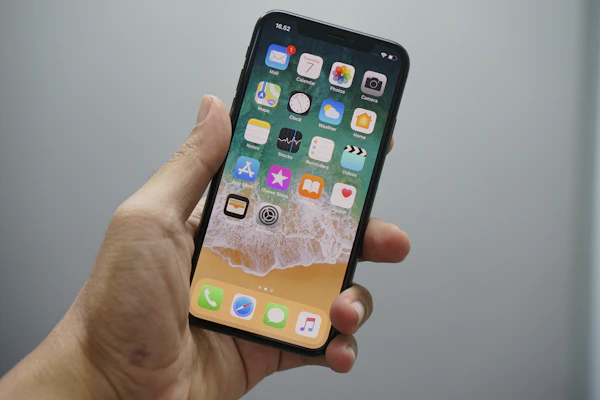 It is highly recommended to perform these maintenance checks at least once a month to ensure optimal device performance. In addition, keeping your device software updated will prevent compatibility problems and protect your personal files from potential security vulnerabilities. Verify each option in detail to prevent configuration conflicts with your hardware profile. Doing this regularly keeps your system stable, fast, and secure for everyday use.
Was this step-by-step guide helpful?
Your feedback helps us keep our guides accurate and clear.
📚 Authority Sources & Citations
This step-by-step guide is aligned with references and verification guidelines from the following trusted authorities: